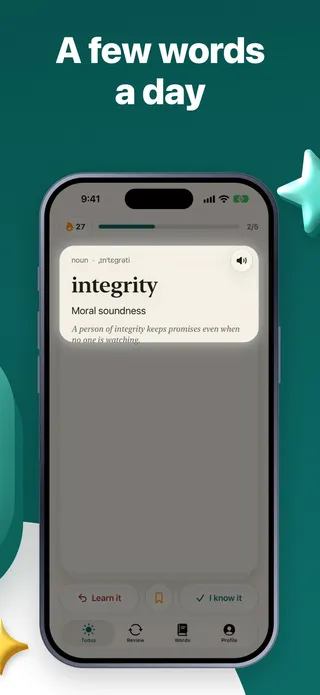
You look at your watch dozens of times a day, mostly for a second or two. That is too short to study, but it is long enough to read one word and remember what it means. Put a word on your watch face and those glances turn into small, repeated reviews, which is how vocabulary sticks.
WordHabit has an Apple Watch app and a Word of the Day complication. This guide shows how to set them up, how to review on your wrist, and what the watch cannot do.
What you get on the watch
- Today’s word, with its pronunciation in IPA, the part of speech and a plain definition.
- Quick review: the words waiting for review, one at a time. Try to recall the meaning, tap Reveal, then mark it Knew it (check mark) or Learn (plus).
- The Word of the Day complication on your watch face, in four styles:
| Style | What it shows |
|---|---|
| Rectangular | The word and a short definition |
| Circular | The word |
| Corner | A book icon with the word along the edge |
| Inline | The word, in the line above the time |
The complication changes once a day, so the word you see in the morning stays with you until the next day.
Set it up
- Install WordHabit on your iPhone from the App Store, open it and choose a list: a general level from A1 to C2 or an exam list such as IELTS, TOEFL, TOEIC or SAT. Open today’s words once, so the app has words to send.
- Install the watch app. If automatic app install is on, it appears on its own. If not, open the Watch app on your iPhone, scroll to Available Apps and tap Install next to WordHabit.
- Open WordHabit on the watch once. You should see Today’s word. If it says to open WordHabit on your iPhone, do that and wait a moment for the words to arrive.
Add the complication to a watch face
- On the watch, touch and hold the current watch face, then tap Edit.
- Swipe left to the Complications screen.
- Tap the slot you want. A large slot such as the one in the Modular or Infograph Modular face fits the rectangular style with the definition; smaller slots show only the word.
- Scroll to WordHabit and choose Word of the Day.
- Press the Digital Crown to save, then tap the face.
You can also do this from the Watch app on your iPhone: go to My Faces, pick a face and set a complication slot to WordHabit.
Review in ten seconds
Open the app from the complication and tap Quick review. The button shows how many words are waiting. For each one:
- Read the word and say the meaning to yourself.
- Tap Reveal to check.
- Tap the check mark if you knew it, or the plus to keep learning it.
Your answers go to WordHabit on your iPhone, which decides when each word comes back: after 1, 3, 8 and 22 days if you keep getting it right, and the same day if you miss it. Answers from the watch go into the same record as the buttons on your iPhone widget.
Make the most of small moments
- Recall before you reveal. The effort of remembering is what makes a word stick. A glance at a definition you did not try to recall does far less.
- Use the rectangular complication for new words, where the definition is visible, and a circular one once you mostly know the list.
- Pair it with the iPhone widget. The word of the day widget for iPhone shows a word on your Home Screen and Lock Screen. The watch covers the moments your phone is in your pocket.
- Say the word out loud when you can. The watch shows the IPA; the iPhone app plays the sound.
What the watch app does not do
Be clear about the limits before you rely on it:
- No sound on the watch. Pronunciation audio plays on the iPhone; the watch shows IPA only.
- No list choice or new-word session on the watch. You choose lists and learn the day’s new words on the iPhone; the watch shows today’s word and reviews.
- It needs your iPhone nearby. If the watch cannot reach it, it shows Couldn’t reach your iPhone. Try again. and your answer is not saved.
- Small screen, short text. Long definitions are trimmed on the complication. Open the app to read the full one.
Try it
WordHabit is free to download for iPhone with iOS 17 or later, and the watch app needs watchOS 10 or later. The watch app and complication are included in the free version, along with the General B1-B2 list and the first 100 words of every list. No watch at hand? Today’s English word of the day is on this site too, with sound and an example.